
ChatGPT Photo Editor: Edit Photos with Text Prompts
This ChatGPT photo editor lets you upload a photo and change it with a simple text prompt, powered by GPT Image 2. Describe the edit in plain English, such as a new background, warmer light or a different style, then download the edited image.
Upload a photo and describe your edit
Drag, paste, or
Supported types: PNG, JPEG, JPG, WEBP, HEIC, URL
ChatGPT Images is an independent service, not affiliated with OpenAI. Image generation and editing requests are routed through APIAny.
Example: one prompt, new backdrop
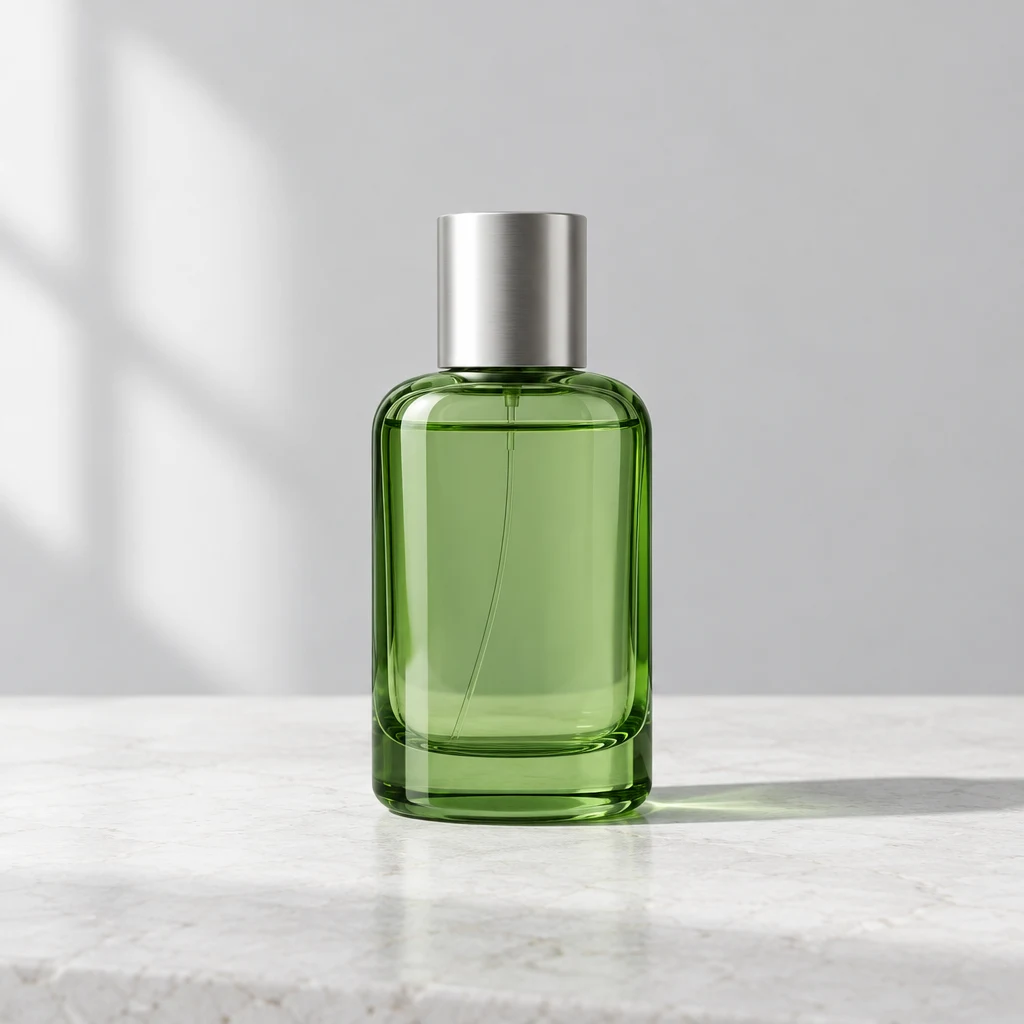
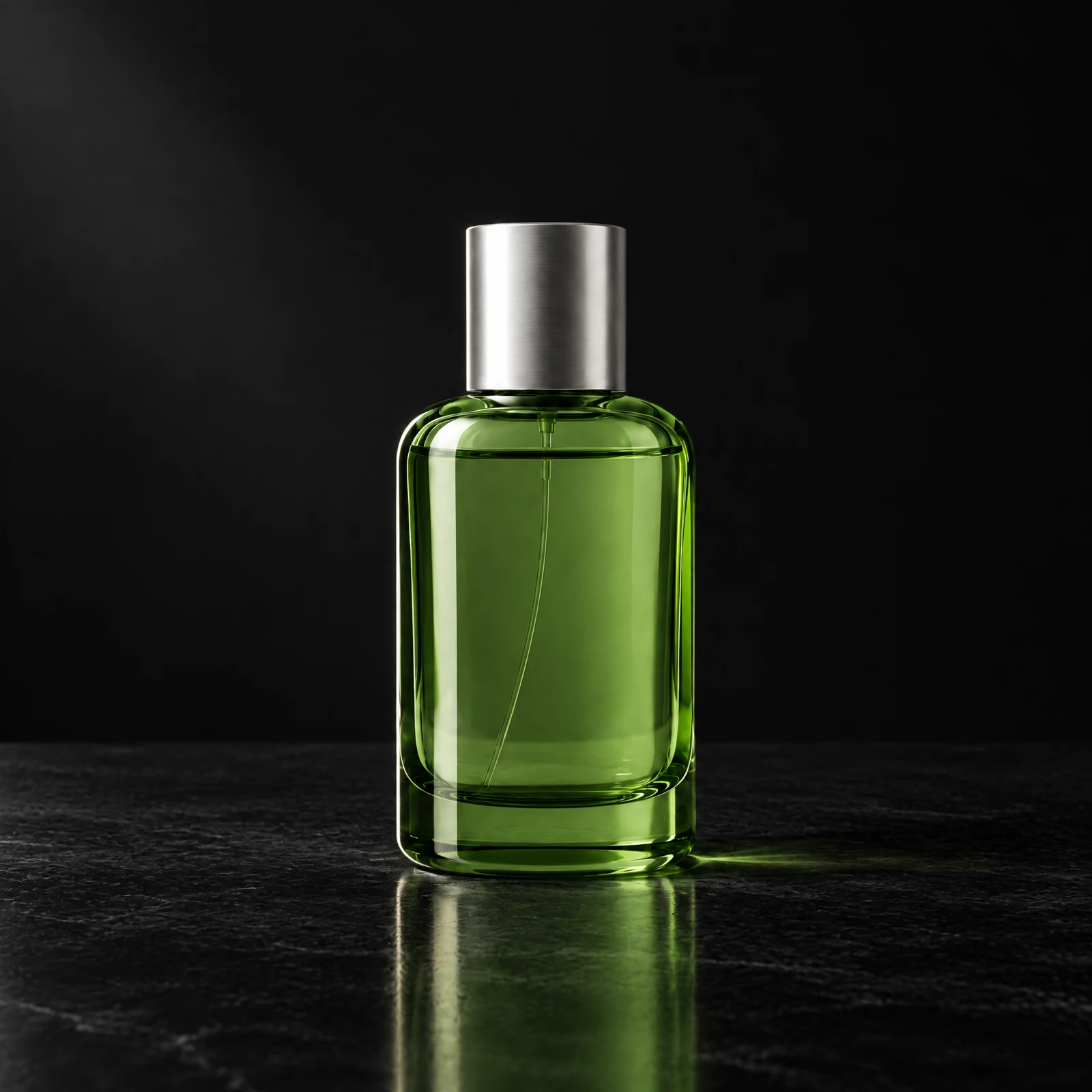
The prompt kept the bottle, cap and camera angle and changed only the surface and backdrop. Edited with GPT Image 2.5 on ChatGPT Images.
Prompt used
Edit this product photograph. Keep the same green glass perfume bottle, silver cap, proportions, position and camera angle. Change only the surface and backdrop to deep black with a restrained side light that outlines the glass. Preserve the product identity. No text, no logo, no extra objects.
What You Can Do with This ChatGPT Photo Editor
Every edit starts from your own photo and one instruction. These are the edits people ask for most often. Click a prompt to load it into the editor, then adjust the details for your picture.
Change the background
Swap a cluttered room for a clean studio, a beach or a city street. Say what must stay the same, or the model may also change the person or product.
Replace the background with a sunny beach at golden hour. Keep the person, pose, face and clothing unchanged.Fix lighting and color
Brighten a dark photo, warm up a cold one or give a set of pictures the same color mood. Ask for one lighting change at a time so you can judge the effect.
Make the lighting warm and soft, like late afternoon sun through a window. Keep everything else the same.Restyle the whole photo
Turn a snapshot into a watercolor painting, a pencil sketch or a 3D cartoon while the original composition stays recognizable.
Turn this photo into a soft watercolor illustration. Keep the composition, the people and their poses.Remove or add objects
Take out a stray object, a sign or a person in the background, or add a prop that fits the scene. The model repaints that area, so check edges and small details in the result.
Remove the person in the background on the left and fill the space with the same wall and floor.Clean up product photos
Put a product on a plain white or colored backdrop with a soft shadow for a store listing or a social post.
Place this product on a clean white studio background with a soft natural shadow. Keep the product shape, color and label unchanged.Repair old or damaged photos
Reduce scratches, fading and blur in old prints, or colorize black-and-white photos. For presets made for old prints, use the AI photo restoration tool.
Restore this old photo: remove scratches and dust, reduce blur and fading, and keep the faces natural.How to Edit a Photo with ChatGPT-Style Prompts
The editor works the same way as asking ChatGPT to change a picture, but every step happens on this page.
- 01
Upload your photo
Drag a JPG, PNG or WebP image into the upload box, or click it to choose a file. Large photos are compressed in your browser before upload. HEIC files from an iPhone need to be converted to JPG or PNG first.
- 02
Describe the edit
Write one or two sentences about what to change and what to keep, or click one of the example prompts. Plain English works; you do not need special keywords.
- 03
Generate, download or refine
Click generate and wait for the result, then download the image if you like it. If it needs another change, use the Add to Input button on the result to send it back to the upload box and describe the next edit.
How to Edit Photos in ChatGPT Itself
You can also edit pictures inside a ChatGPT conversation. Open a chat, attach your photo with the upload button and type what you want changed, for example "make the sky blue and remove the car". ChatGPT creates a new version of the image, and you can keep asking for changes in the same thread.
Image editing in ChatGPT depends on your plan and region, and the limits change over time. OpenAI's Images in ChatGPT help article explains the current editing options, including selecting an area of the image before you describe the change.
The two approaches suit different jobs. ChatGPT is conversational, which is handy when you are already chatting and want to talk through ideas. This page is a dedicated photo editor: the upload box, example prompts, a before-and-after example and the download button sit on one screen, and each result can go straight back in for another edit. ChatGPT Images is an independent service and is not part of ChatGPT.
Prompt Tips for Better Photo Edits
Image models redraw the picture when they edit it, so clear instructions matter more than clever wording. OpenAI's image generation guide describes how GPT Image models edit from input images and a prompt.
- Say what to keep. List the parts that must not change. "Keep the face, hair and clothing unchanged" protects a portrait far better than saying nothing.
- Change one thing at a time. "Change the background to a park" works more reliably than one request that also changes the lighting, the outfit and the camera angle. Make the next change on the result.
- Be specific about the look. "Warm, soft evening light from the left" gives the model more to work with than "better lighting".
- Point to parts by position. Refer to objects by where they are, such as "the lamp in the top right corner", so the model edits the right area.
- Expect small differences. Edits are regenerated, not retouched pixel by pixel, so faces, small text and fine patterns can shift. Keep your original file.
For more ready-made wording, see our ChatGPT image enhancer prompts.
Related Tools and Guides
ChatGPT Photo Editor FAQ
Can ChatGPT edit photos?
Yes. ChatGPT can take an uploaded photo and create an edited version from a text request; see OpenAI's Images in ChatGPT help article for current features and availability. This page offers the same kind of prompt-based editing with GPT Image 2, directly in your browser.
How do I use this ChatGPT photo editor?
Upload a photo, type the change you want or click an example prompt, then generate and download the result. If it needs more work, send the result back with Add to Input and describe the next change.
What kinds of edits can I make?
You can change backgrounds, adjust lighting and color, restyle a photo, remove or add objects, clean up product shots and repair old photos. For background removal on its own, read can ChatGPT remove background, and for old prints try AI photo restoration.
Is this the official ChatGPT?
No. ChatGPT Images is an independent service, not affiliated with or endorsed by OpenAI. It gives you a web editor for GPT Image 2 so you can edit photos with text prompts.
Is the ChatGPT photo editor free?
New accounts get 50 free credits. An edit with GPT Image 2 uses 10 credits per image at standard quality, so you can try several edits before deciding whether to buy more on the pricing page.
Will the edited photo match my original exactly?
Not pixel for pixel. The model regenerates the image from your photo and prompt, so faces, small text and fine textures can change slightly. Say clearly what to keep, and keep your original file.
Ready to edit your photo?
Upload a picture, describe the change and download the result.
Upload a photo