
AI Image Enhancer: Make Blurry Photos Sharp and Clear
This AI image enhancer turns blurry, noisy or low-resolution photos into sharp, high-resolution images. GPT Image 2 first restores clarity, color and fine detail, then Real-ESRGAN upscales the result 2×. In our test, a 384 × 384 photo came back at 2,508 × 2,508 pixels.
Upload a photo to enhance
Enhancing a photo uses 50 credits and needs a free account. New accounts start with 50 credits, and free accounts earn 10 more with each daily check-in. AI Image Sharpening costs 10 credits: it runs Recraft Crisp Upscale only, without the GPT Image 2 restore step.
ChatGPT Images is an independent service, not affiliated with OpenAI. Image generation and editing requests are routed through APIAny.
Real Before-and-After Results from This Enhancer
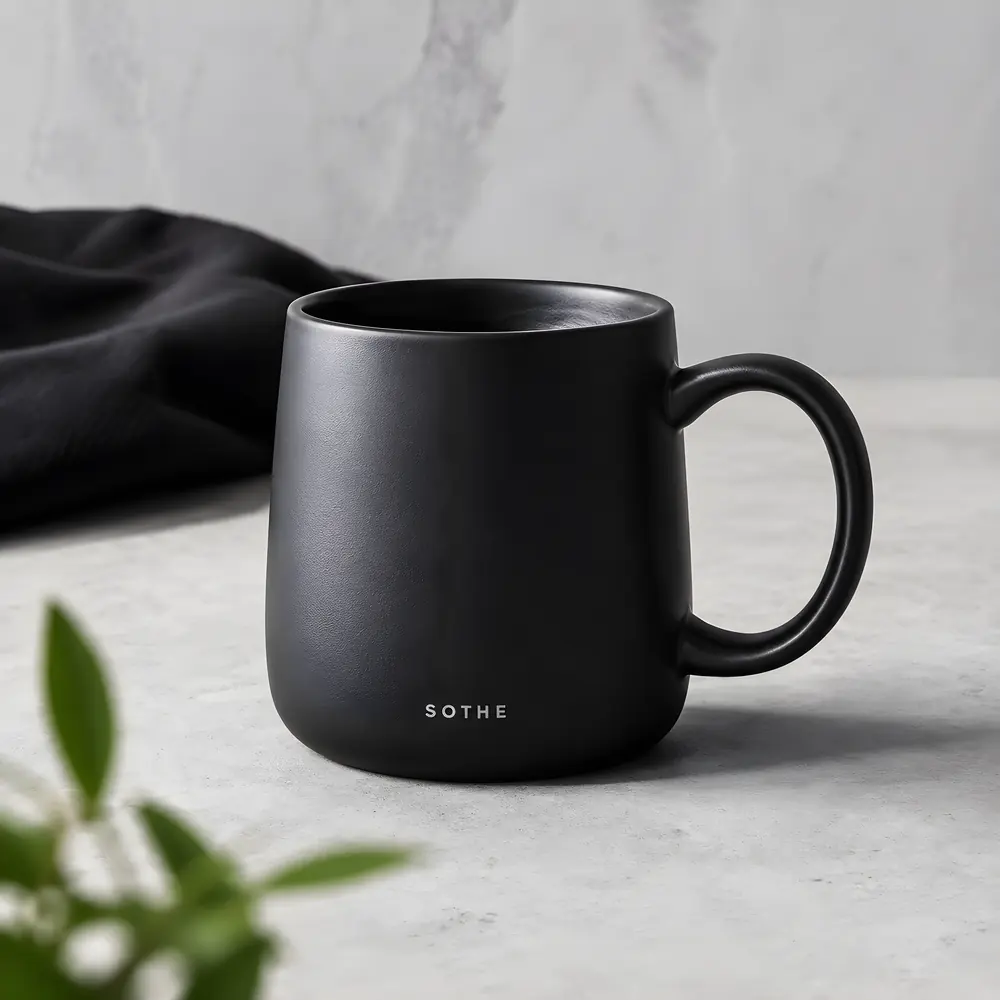
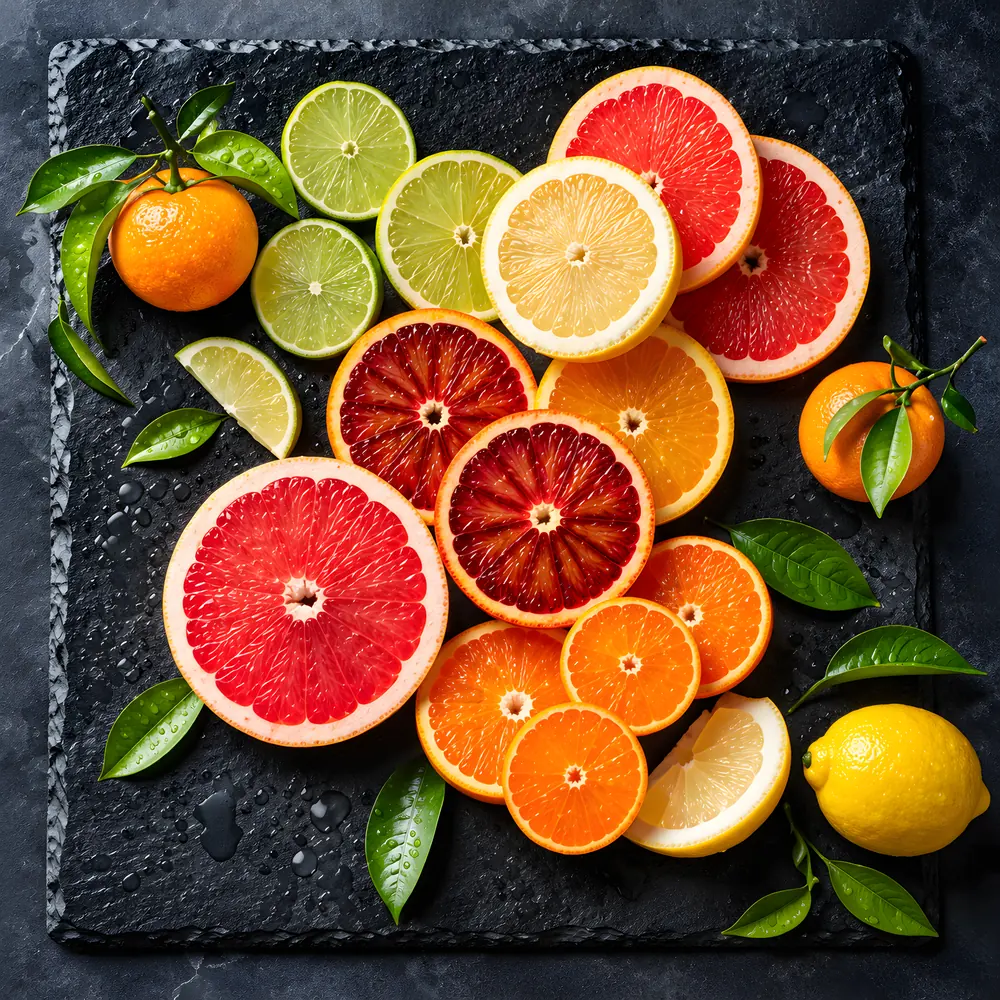
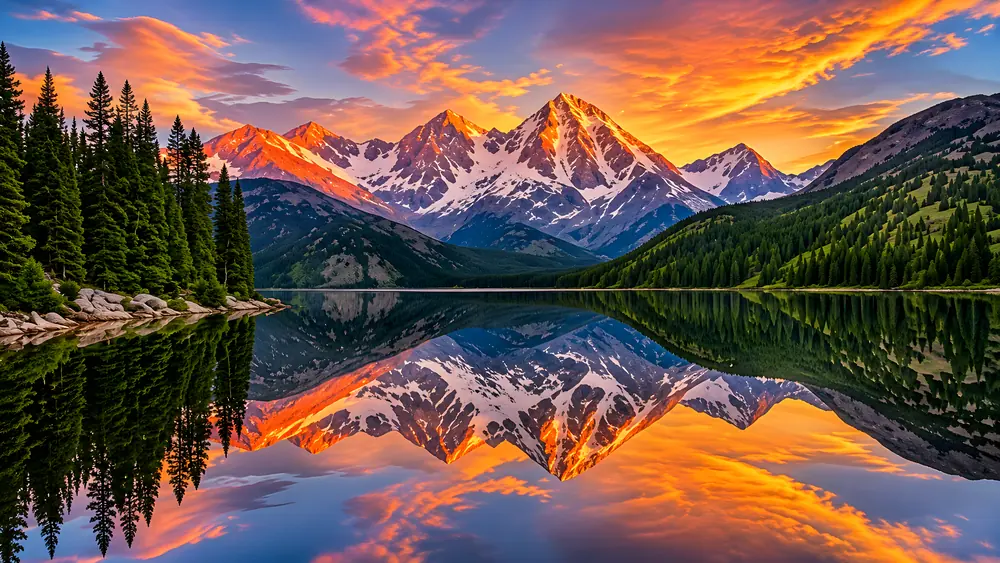
Every “after” image below came straight out of this tool on November 1, 2026. To make the “before” images, we shrank three pictures from our GPT Image 2 gallery, blurred them slightly and saved them as low-quality JPEGs. The results were only resized so this page loads faster. Drag each slider to compare.
How to Enhance an Image with AI
- 01
Upload your photo
Drag a JPG, PNG or WebP into the box above, paste it with Ctrl+V or ⌘V, or tap the box to pick a photo on your phone.
- 02
Pick a mode
AI Enhance Quality restores the photo with GPT Image 2 and then upscales it 2× (50 credits). AI Image Sharpening only sharpens and upscales (10 credits).
- 03
Enhance and compare
Press the button and keep the page open while the photo is processed. When the result appears, drag the slider to compare it with your original.
- 04
Download the result
Click HD Download to save the enhanced image as a PNG. Downloads have no watermark.
What the AI Photo Enhancer Fixes
AI Enhance Quality sends your photo to GPT Image 2 with one fixed instruction, so every photo gets the same treatment:
Restore and enhance this photo: improve clarity, sharpness, lighting and color, remove blur, noise and compression artifacts, and recover fine detail. Keep the original subject, composition and aspect ratio unchanged — do not add or remove any elements.
- Blur and soft focus. Slightly out-of-focus shots, small motion blur and soft phone photos.
- Noise and grain. Speckles from low light or a high ISO setting.
- Compression artifacts. Blocky JPEG patches and color banding in images that were saved or shared many times.
- Low resolution. Thumbnails, small web images and screenshots that need more pixels.
- Dull light and color. Flat, dark or washed-out photos, because the instruction also asks for better lighting and color.
- Faded old photos. Scans of old prints. Faces may be redrawn, so keep the original scan.
How Much Does It Upscale? Image Resolution Explained
The enhancer works in two steps, so the final size is not a fixed multiple of your upload. GPT Image 2 first redraws the photo at its own output size: 1,254 × 1,254 pixels for our square test photo, about 1.6 megapixels. Real-ESRGAN, an open-source super-resolution model, then doubles the width and height.
Small photos therefore grow a lot, while a photo that is already larger than the result will not gain pixels. If the upscaling service is unavailable, the tool returns the restored image without the 2× step.
| Test photo | Uploaded | Downloaded | Pixel count |
|---|---|---|---|
| Product photo | 384 × 384 | 2,508 × 2,508 | About 43× more |
| Food photo | 384 × 384 | 2,508 × 2,508 | About 43× more |
| Landscape (16:9) | 512 × 288 | 3,344 × 1,882 | About 43× more |
Which tool to use depends on what is wrong with the photo:
| Tool | What it does | Cost | Best for |
|---|---|---|---|
| AI Enhance Quality (this page) | Restores the photo with GPT Image 2, then upscales 2× with Real-ESRGAN | 50 credits | Blurry, noisy or heavily compressed photos |
| AI Image Sharpening (this page) | Runs Recraft Crisp Upscale, which Recraft describes as making images sharper and cleaner; no restore step | 10 credits | Fairly clean images that need more pixels |
| Super Resolution | Upscales with GPT Image 2 and falls back to a 2× Real-ESRGAN upscale | 10 credits | Enlarging a sharp image |
| Resize Image | Changes pixel dimensions in your browser, without AI | Free | Exact sizes for upload forms and social posts |
Enhance, Then Edit with GPT Image 2
Enhancing cleans a photo up but does not change what is in it. To swap the background, remove an object or restyle the picture, download the result and open it in the ChatGPT photo editor, then describe the edit in plain English. GPT Image 2 is OpenAI's image model, and OpenAI's image generation guide covers how editing with a prompt works.
Prompts that work well after enhancing:
- “Replace the background with plain white and keep the product exactly as it is.”
- “Remove the scratches and dust from this old photo; keep the faces unchanged.”
- “Brighten the room and make the colors look natural; do not move any furniture.”
More ideas are in ChatGPT image enhancer prompts and the GPT Image 2 prompt guide. Need a transparent PNG instead? The background remover handles 10 images a day without an account, and the image tool crops and rotates.
Tips and Limitations
For the best results
- Upload the original file, not a screenshot or a copy that was forwarded through a chat app.
- Crop to the subject first: the restore step has a fixed pixel budget, so a tighter crop leaves more pixels for what matters.
- Enhance once. Running a result through again redraws it again and drifts further from the original.
Know the limits
- Text and logos can be rewritten. In our mug test, the blurry logo came back as different letters.
- Faces may change slightly, so do not use the result for ID photos, evidence or anything that must stay exact.
- Very blurry photos get plausible new detail, not the detail that was really there.
- The download is about 6 megapixels, so a photo larger than that will come back smaller.
AI Image Enhancer vs. Other Ways to Improve a Photo
| This AI image enhancer | Resizing without AI | Manual photo editing | |
|---|---|---|---|
| Adds missing detail | Yes, by redrawing it | No, it stretches existing pixels | Only what you paint by hand |
| Removes noise and compression | Yes, in the same step | No | With filters and practice |
| Keeps every detail exactly | No, small text and faces can change | Yes | Yes |
| Effort | Upload and click | Pick a size | Photo-editing skills and time |
| Cost | 50 credits per photo | Free with Resize Image | Software plus your time |
Comparing enhancer apps? Our PhotoGrid AI image enhancer alternative and Krea AI image enhancer alternative pages show how to enhance with a written prompt instead of one click. Already working in the tool sidebar? The same tool is the ChatGPT photo enhancer, also available in 10 other languages.
Frequently Asked Questions
Is this AI image enhancer free?
You can try it free. A new account starts with 50 credits, which covers one enhancement. Free accounts earn 10 credits per daily check-in (valid for 7 days), plus 30 more on the seventh day in a row. After that you can buy credits or use AI Image Sharpening, which costs 10 credits. You need to sign in before enhancing.
How much can I upscale an image?
The restore step returns about 1.6 megapixels and the upscale step doubles the width and height, so a download is about 6 megapixels: 2,508 × 2,508 for a square photo and 3,344 × 1,882 for a 16:9 photo in our tests. Small photos grow several times; a photo that is already larger will not gain pixels.
Will the enhanced image have a watermark?
No. HD Download saves the enhanced PNG without a watermark.
Does the AI change my photo's content?
It can. GPT Image 2 redraws the photo instead of only sharpening pixels, so small text, logos and faces may come back slightly different. In our test the blurry logo on a mug became different letters. Keep your original and check important details.
What kinds of photos work best?
Small, soft or compressed photos of products, food, places and objects improve the most. Results are less reliable for tiny text, documents, ID photos and faces that need to stay exactly the same.
Can I edit the photo after enhancing it?
Yes. Download the result and open it in the ChatGPT photo editor to change the background, remove objects or restyle it with a text prompt, or use the image tool to crop and rotate it.
More AI Image Tools
Enhance your photo now
Upload a blurry or low-resolution photo and compare the result before you download it.
Enhance a photo