
Krea AI Image Enhancer Alternative: Enhance Photos with GPT Image 2
The Krea AI image enhancer upscales pictures and adds detail, tuned with sliders for strength and resemblance. This page is an independent, prompt-based alternative: upload a photo, pick a fix or write your own, and GPT Image 2 returns an enhanced version. ChatGPT Images is not affiliated with Krea.
Upload a photo and describe the enhancement
Drag, paste, or
Supported types: PNG, JPEG, JPG, WEBP, HEIC, URL
Need a bigger file rather than a redrawn one? AI Super Resolution upscales 2x for 10 credits, and the one-click AI image enhancer adds a restoration pass before its 2x upscale.
ChatGPT Images is not affiliated with, endorsed by or connected to Krea. Krea is a trademark of its owner. ChatGPT Images is an independent service, not affiliated with OpenAI. Image generation and editing requests are routed through APIAny.
What Is the Krea AI Image Enhancer?
Krea Enhancer is the upscaling and enhancement tool inside Krea, an AI creative suite for images and video. According to Krea's own Enhancer tool, photo enhancer page, image upscaler page and pricing page, checked in October 2026:
- It upscales images up to 22K and videos up to 8K, with scale options from 1x to 32x, and adds new detail as it enlarges.
- Its settings include an optional prompt plus AI Strength, Resemblance, Clarity, Sharpness and Match Color controls.
- Uploads can be up to 75 MB, and an image's shortest side must be at least 96 pixels. The photo enhancer page lists PNG, JPEG, WebP, HEIC and HEIF files.
- The free plan includes 100 compute units a day and upscales images up to 2K with basic models; the upscaler page caps free output at 2,048 pixels on the longest side.
- Paid plans, starting with Basic, unlock image upscaling up to 22K, including paid upscalers such as Topaz Standard.
In short, Krea Enhancer is built for large, finely controlled upscales. If you mainly need more pixels for a print or a 4K screen, it is a strong option. If you would rather say what to fix in plain words, or enhance a photo and then edit it in the same place, the editor above is the alternative. Krea's plans and limits can change, so check its site for current details.
How to Enhance an Image with GPT Image 2 (Krea Alternative)
The editor at the top of this page runs GPT Image 2 image-to-image editing. Each preset only fills in a prompt, so you can read and change the wording before you generate.
- 01
Upload your photo
Drag a JPG, PNG or WebP file into the upload box, or click it to choose one. Large photos are compressed in your browser before upload. Unlike Krea, the editor does not accept HEIC, so convert iPhone photos to JPG or PNG first.
- 02
Choose a fix or describe one
Add detail suits soft but usable photos, Unblur suits out-of-focus shots, Fix AI artifacts suits generated images with smeared areas, and Restore old photo suits faded prints. Edit the prompt, or write your own instruction.
- 03
Generate and compare
Generate, then compare the result with your original at full size. If something changed that should have stayed the same, name it in the prompt and run it again.
- 04
Download, refine or upscale
Download the image, use Add to Input on the result to send it back for another pass, or run it through AI Super Resolution when you need a larger file.
Krea Enhancer Settings and Their Prompt Equivalents
Krea tunes enhancement with sliders, while GPT Image 2 takes the same intent as words. The middle column describes each setting by its label in Krea's tool, so test on your own image. The right column gives wording you can paste into the editor above.
| Krea Enhancer setting | What it adjusts | How to ask for it in a prompt |
|---|---|---|
| Upscale factor (1x to 32x) | How many times larger the output is | A prompt cannot set the pixel size. Enhance first, then use AI Super Resolution for a 2x larger file. |
| Prompt | Optional text that guides the added detail | Describe the subject and the fix, for example "sharpen the eyelashes and the fabric weave". |
| AI Strength | How much new detail the model may add | Say "a subtle, light enhancement" for small changes, or "add rich, fine detail" for a stronger pass. |
| Resemblance | How closely the result stays to the original | List what must not change: "keep the face, pose, colors and framing exactly the same". |
| Clarity and Sharpness | Local contrast and edge crispness | Ask for "crisp edges and clear texture without halos or over-sharpening". |
| Match Color | Whether the result keeps the original colors | Add "keep the original colors and white balance". |
Krea AI Image Enhancer vs a GPT Image 2 Enhancer
Both run in a browser, so the better pick depends on the job. This table compares situations, not benchmark scores.
| Situation | Better fit | Why |
|---|---|---|
| Print, wallpaper or 4K-plus output | Krea Enhancer | Krea lists image upscaling up to 22K on paid plans, far beyond the sizes an image model returns. |
| Upscaling or enhancing video | Krea Enhancer | Krea's Enhancer also takes video, up to 8K. The enhancers on this site work on still images. |
| HEIC photos straight from an iPhone | Krea Enhancer | Krea's photo enhancer page lists HEIC and HEIF; the editor here needs JPG, PNG or WebP. |
| You want to say exactly what to fix | The editor on this page | GPT Image 2 follows a written instruction, such as sharpening a product label while leaving the background soft. |
| Enhance first, then change the picture | The editor on this page | The same prompt box can also swap a background or restyle the photo. See the ChatGPT photo editor. |
| One click, no prompt and a 2x larger file | The AI image enhancer on this site | It runs a fixed restoration pass, then a 2x upscale, for 50 credits per image. |
| IDs, documents or evidence | Neither generative tool | Both add or redraw detail. Keep the original file, or use a classic photo editor. |
The two also work together: fix a photo with a prompt here, then hand the result to a dedicated upscaler when you need a very large file.
Before and After: One-Click Enhancement on This Site
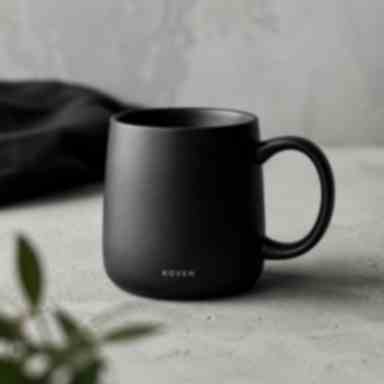
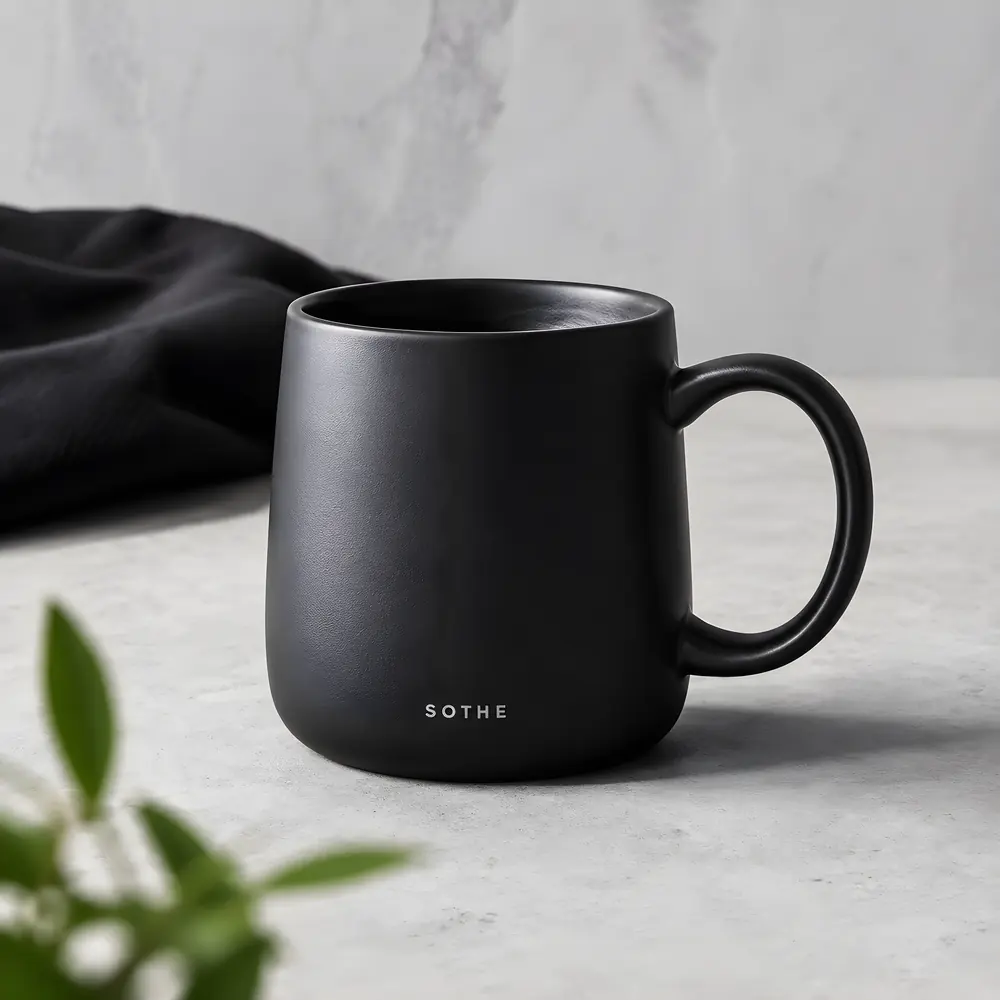
We shrank, blurred and compressed a GPT Image 2 product shot to 384 × 384, then ran it through our one-click AI image enhancer on November 1, 2026. The restoration pass and 2x upscale returned 2,508 × 2,508 pixels, shown here at 1,000. The blurry logo on the mug came back as different letters, because the enhancement is generative, which is also true of upscalers that add new detail.
Tips for Sharper, More Natural Results
Whether you use Krea or the editor here, the same habits give cleaner enhancements.
- Start from the best source you have. Upload the original file rather than a screenshot or a copy from a messaging app; compression artifacts get enhanced along with the detail.
- Fix first, upscale last. Clean up blur, noise or damage at the original size, then enlarge. Upscaling a flawed image only makes the flaws bigger.
- Protect what matters. Name the faces, text and logos that must stay the same. It works much like turning up Resemblance in Krea.
- Avoid the over-processed look. Ask for natural texture and no halos. Extra sharpening often makes skin look plastic and edges look outlined.
- Enhance AI art before you upscale it. Generated images often have smeared hands or textures. The Fix AI artifacts preset cleans those up so a later upscale has cleaner detail to work from.
For copy-ready wording, see these image enhancer prompts and the GPT Image 2 prompt guide. To hit an exact size for a website or store afterwards, resize your image.
Limitations of Prompt-Based Enhancement
GPT Image models create a new image from your input image and prompt, as OpenAI's image generation guide describes. That makes enhancement flexible, but it has trade-offs:
- The output follows the model's supported sizes rather than a multiple of your original, so it does not replace a 16x or 32x upscale.
- Faces, small text and logos can shift between attempts, so check them at full size before you use the result.
- Tiny or heavily compressed images give the model little to work with, and missing detail is invented rather than recovered.
- It works on still images only. For video, use a dedicated video upscaler.
Krea AI Image Enhancer FAQ
Is this the official Krea AI image enhancer?
No. ChatGPT Images is an independent service and is not affiliated with Krea. This page enhances photos with GPT Image 2 from a written prompt; Krea's own tool is the Krea Enhancer.
Is the Krea AI image enhancer free?
Krea has a free plan. Its pricing page, checked in October 2026, lists 100 compute units a day and image upscaling up to 2K with basic models, while paid plans unlock upscales up to 22K. See Krea's pricing for current details.
How much does the alternative on this page cost?
New accounts get 50 free credits, and a daily check-in adds more. An enhancement with GPT Image 2 uses 10 credits per image at standard quality, AI Super Resolution uses 10 credits for a 2x upscale, and the one-click AI image enhancer uses 50 credits. See pricing for credit packs.
Can I upscale an image to 4K or 8K here?
Not in one step. GPT Image 2 returns images at the sizes it supports, and AI Super Resolution doubles the width and height. For 4K-plus prints or video, a dedicated upscaler such as Krea Enhancer is the better tool.
Can I edit the image after enhancing it?
Yes. Click Add to Input on the result to run another pass, or open image-to-image editing to change the background, lighting or style with a prompt.
What photos work best?
Photos where the subject is visible but soft, dark, noisy or slightly damaged. JPG, PNG and WebP are accepted; convert HEIC files first. Tiny thumbnails and extreme blur give the model less to work with, so results vary more.
More Image Tools
Try a prompt-based enhancement
Upload a picture, describe the fix and compare the result with your original.
Enhance a photoChatGPT Images is not affiliated with, endorsed by or connected to Krea. Krea is a trademark of its owner.