
PhotoGrid AI Image Enhancer Alternative: Enhance Photos with a Prompt
Searching for the PhotoGrid AI image enhancer? This page is a prompt-based alternative: upload a photo, pick a fix such as unblur or brighten, and GPT Image 2 enhances it in your browser. ChatGPT Images is not affiliated with PhotoGrid.
Upload a photo and choose an enhancement
Drag, paste, or
Supported types: PNG, JPEG, JPG, WEBP, HEIC, URL
Prefer one click with no prompt? The AI image enhancer runs a fixed restoration pass and upscales the result 2x.
ChatGPT Images is not affiliated with, endorsed by or connected to PhotoGrid. PhotoGrid is a trademark of its owner. ChatGPT Images is an independent service, not affiliated with OpenAI. Image generation and editing requests are routed through APIAny.
What Is the PhotoGrid AI Image Enhancer?
The PhotoGrid AI image enhancer is a tool on PhotoGrid's website for improving photo quality. According to PhotoGrid's Free AI Image Enhancer page, checked in October 2026, it offers the following:
- It improves dark, blurry and grainy images and outputs them at up to 4K.
- It is described as 100% free, with no watermark and no sign-up.
- It accepts batch uploads, so several photos can be enhanced together.
- It sits alongside other PhotoGrid tools such as a blur remover, a face enhancer, photo restoration and a 4K upscaler, and PhotoGrid sells a PRO plan for its wider set of AI tools.
Because PhotoGrid already runs a free web version, the real choice is not app versus browser. It is which kind of enhancement you need: a fixed one-click pass, or a fix you describe in your own words. Details on PhotoGrid can change, so check its site for the current offer.
How to Enhance a Photo Online with a Text Prompt
The editor at the top of this page uses GPT Image 2 image-to-image editing. Each preset simply fills in a prompt that you can read and change before you generate.
- 01
Upload your photo
Drag a JPG, PNG or WebP file into the upload box, or click it to choose one. Large photos are compressed in your browser before upload, and HEIC files need converting to JPG or PNG first.
- 02
Pick a preset or write a prompt
Unblur suits soft or out-of-focus shots, Brighten suits dark or backlit photos, Restore old photo suits faded prints, and Reduce noise suits grainy low-light pictures. Edit the wording, or write your own instruction.
- 03
Generate and compare
Click generate and compare the result with your original. If something changed that should have stayed the same, name it in the prompt and run it again.
- 04
Download or refine
Download the enhanced image. To keep improving it, use the Add to Input button on the result to send it back to the upload box for another pass.
PhotoGrid AI Image Enhancer vs a GPT Image 2 Enhancer
Both run in a browser, so the better pick depends on the photo and on how much control you want. This table compares situations, not benchmark scores.
| Situation | Better fit | Why |
|---|---|---|
| Many photos that need one quick, free pass | PhotoGrid's web enhancer | Its page lists batch uploads, free use and 4K output with no sign-up. |
| You want to say exactly what to fix | The editor on this page | GPT Image 2 follows a written instruction, such as brightening a face while keeping the background dark. |
| You also want to change the photo, not just clean it | The editor on this page | The same prompt can swap a background, restyle a picture or colorize it with colors you name. See the ChatGPT photo editor. |
| One click, no prompt and a 2x larger file | The AI image enhancer on this site | It runs a fixed restoration pass and then upscales 2x, for 50 credits per image. |
| Documents, IDs or evidence where every pixel must stay true | Neither generative tool | AI enhancers redraw detail. Keep the original, or use a classic photo editor. |
The two do not conflict. Use whichever fits the device you are on and the result you need, and keep your original file either way.
Before and After Example
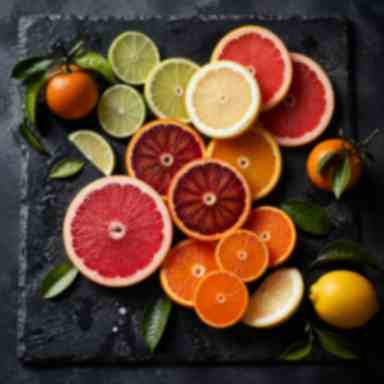
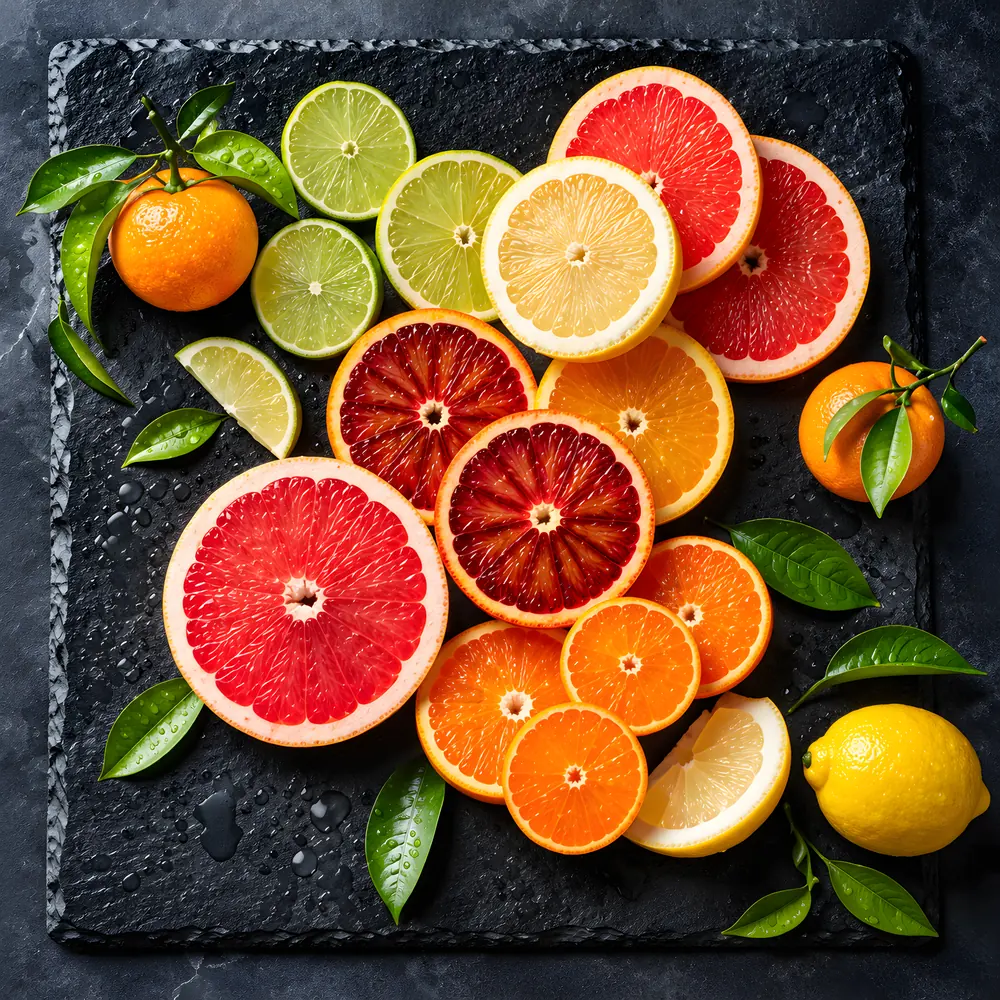
This pair came out of our one-click AI image enhancer on November 1, 2026: a 384 × 384 input made by shrinking, blurring and compressing a GPT Image 2 food photo, and a 2,508 × 2,508 result shown here at 1,000 pixels. Look closely and the peel texture and water droplets are redrawn rather than recovered, because generative enhancement redraws the photo rather than filtering it.
Prompt Tips for Better Enhancement Results
A short, specific prompt gives more predictable results than a long list of adjectives.
- Name what must stay the same. "Keep the face, expression and background unchanged" protects a portrait far better than saying nothing.
- Describe the problem, not just "better". "Reduce motion blur on the moving car" gives the model more to work with than "make it better".
- Fix one thing per pass. Brighten first, then sharpen on the result. Stacking every fix into one prompt makes it harder to see what went wrong.
- Say what look you want. Phrases such as "natural daylight colors" or "keep a subtle film grain" stop the result from looking over-processed.
For copy-ready wording, see these image enhancer prompts and the GPT Image 2 prompt guide.
Limitations to Know Before You Enhance
GPT Image models create a new image from your input image and prompt, as OpenAI's image generation guide describes. That makes enhancement flexible, but it has limits:
- Faces, small text and logos can change between attempts, so check them before you use the result.
- It is not suitable for ID photos, documents or evidence, where the original pixels must stay unchanged.
- The output follows the model's supported sizes rather than your original pixel count. For a larger file, run the result through AI Super Resolution.
PhotoGrid AI Image Enhancer FAQ
Is this the official PhotoGrid AI image enhancer?
No. ChatGPT Images is an independent service and is not affiliated with PhotoGrid. This page offers a prompt-based way to enhance photos with GPT Image 2; PhotoGrid's own enhancer is on its website.
Do I need to install an app to enhance photos?
No. Uploading, enhancing and downloading on this page all happen in a desktop or mobile browser. PhotoGrid's enhancer also has a web version, so pick whichever workflow suits the photo.
Is it free to use?
New accounts get 50 free credits. An enhancement with GPT Image 2 on this page uses 10 credits per image at standard quality, and the one-click AI image enhancer uses 50 credits including a 2x upscale. See pricing for credit packs.
Will AI enhancement change my photo's details?
It can. Generative models redraw the image, so faces, small text and logos may shift. Name what must stay the same in your prompt, try again if needed, and see these image enhancer prompts for wording that works.
Can I restore old or blurry photos?
Yes. Try the Restore old photo or Unblur preset. Heavily damaged or very small photos have limits, because missing detail is invented rather than recovered. For a page made for old prints, use AI photo restoration.
What photos work best?
Photos where the subject is visible but soft, dark or noisy. Tiny thumbnails, extreme blur and heavy compression give the model less to work with, so results vary more.
More Image Tools
Enhance your photo now
Upload a picture, pick a fix and compare the result with your original.
Enhance a photoChatGPT Images is not affiliated with, endorsed by or connected to PhotoGrid. PhotoGrid is a trademark of its owner.